
ArticleUpdated: September 6, 2026
Step-by-step guide to modeling in ZBrush. Part 1
In short
Vitaly Gomolitsky collected the snags ZBrush beginners get stuck on, with the fix for each. The model multiplies as copies across the canvas, the camera has flown off, a subtool has gone black, the floor under the object has vanished, all subtools move at once — each case has its key.

Skills Up School
Online school of drawing and CG
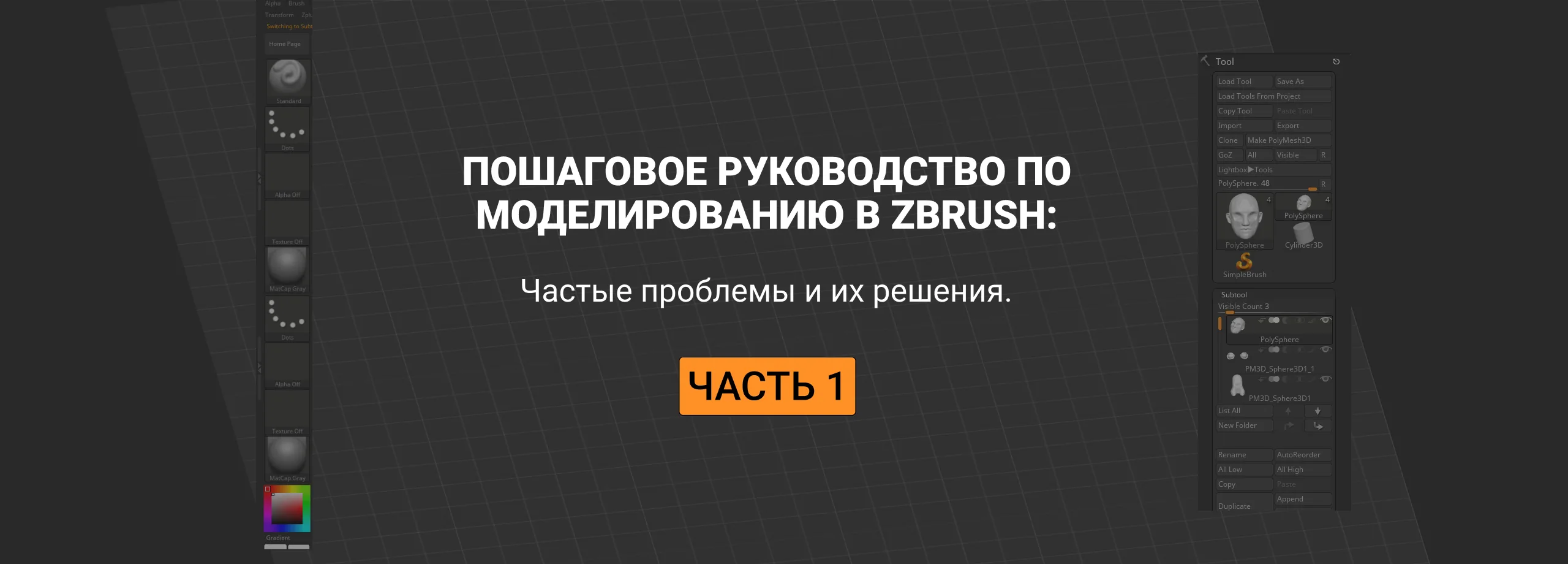 Before taking lessons on sculpting in ZBrush, for beginners (and not only), we have prepared instructions with the most common problems in ZBrush and their solutions. Its author is — the curator of courses in 3D graphics at Skills Up School Vitaly Gomolitsky.
- Instead of sculpting my model, I end up drawing copies of it all over the canvas. What's the matter?
- Something happened and I can't see my model, maybe my camera flew away somewhere.
- I move the subtool, but all the subtools in the scene move at once. Why?
- My manipulator has gone somewhere. What to do?
Related courses
All courses
Solution: The manipulator can be easily returned by pressing the icon with the location. It will center itself relative to the subtool, and the button with the house will send the subtool together with the manipulator to the center of the scene.
- My subtool has become completely black.
- The floor, the grid that was under my subtool, has disappeared. What to do?
- I could easily rotate the camera around the object, but now it seems to be rotating along a certain axis. What happened?
- I have several subtools, and when I rotate one of them, the others disappear and reappear when I stop the camera. What is this?
- I have such a screen resolution that not all buttons fit. Can something be done about it?
- All my subtools have scattered all over the canvas. What happened?
- There was a long and fruitful work, but the next time I opened the file, I saw just a flat picture with my model, like a screenshot. What's the matter?
- There was a long and fruitful work, but ZBrush crashed/the light went out/the computer froze/there was no time to save. Does it save backup copies?
Related materials
Article
About color and light in simple language: a comprehensive guide
March 21, 2025
Article
Texture and finish in the drawing
November 15, 2024
Article
What to start learning 3D modeling with
January 30, 2025
Article
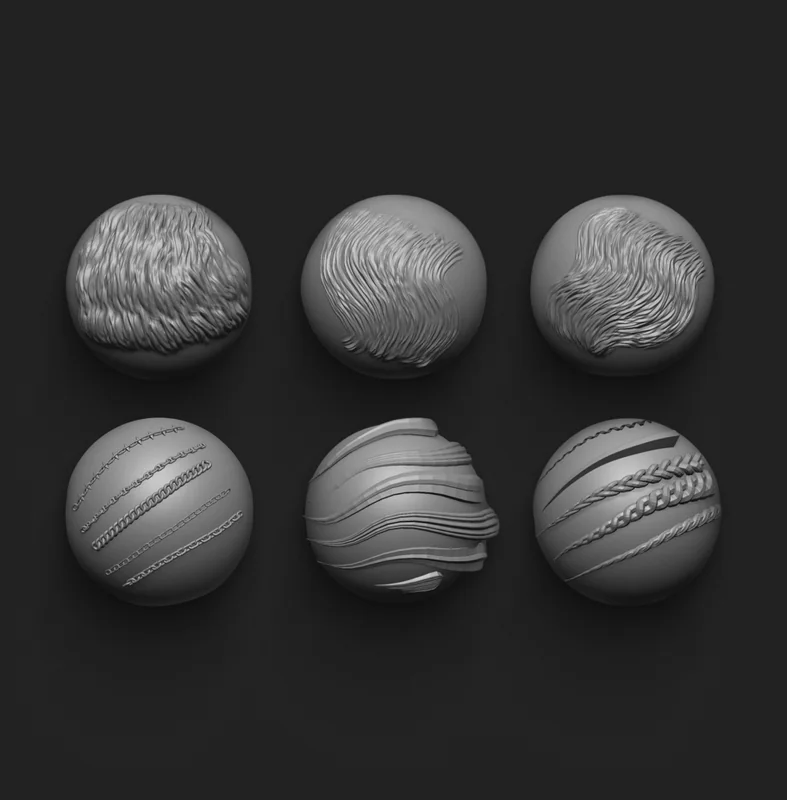
Free brushes for ZBrush: brush sets
September 18, 2023
Article
8 tips for beginners in Zbrush
September 18, 2023
Tutorial
How to draw a crystal. Step-by-step guide for artists
March 24, 2025