Understanding the 3Ds Max interface. Main toolbar, projection windows
The 3ds Max workspace is built from blocks: the main menu, the main toolbar, the viewports, the command panel, the time slider, object coordinates and the animation controls. It also shows how to assemble your own toolbar.
We open a series of articles with guidance on working with the 3Ds Max interface — a program for polygonal 3D modeling, animation and rendering.
This guide will be useful to novice 3D artists and those who model in other programs but want to learn new software.
You can learn to model from scratch on the 3D Basic online course at Skills Up School. The course is aimed at mastering the basic principles and techniques of 3D modeling applicable in the gaming industry.
The 3Ds Max interface consists of blocks:
- Main menu.
- Main toolbar.
- Projection windows.
- Command panel.
- Track bar, also known as Time Slider (time scale).
- Panel for entering commands of the built-in 3Ds Max language — MaxScript.
- Object coordinate panel.
- Animation control panel.
- Navigation panel — allows you to manage scenes in all projection windows: zoom in, zoom out and rotate objects.
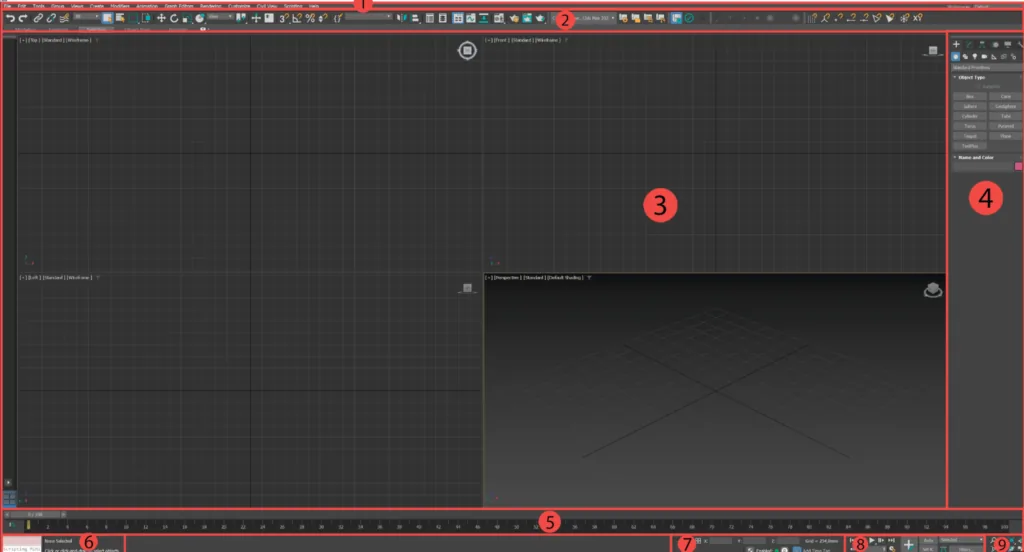
In the first part of the manual, we will look at the blocks "Main Toolbar" and "Projection Windows".
Main toolbar (Main Toolbar)
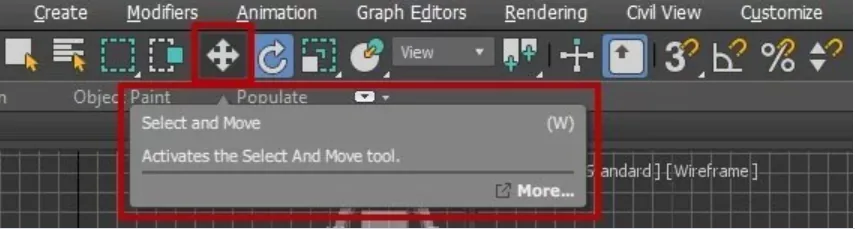
You will find the main toolbar under the main menu — here are buttons for quick access to the most popular functions of the program, according to the developers. When you hover the mouse pointer over the desired button, a tooltip with a description of the functions of this button will appear:
Panels in 3Ds Max, as in any other modern 3D package or graphic editor, are moved and docked anywhere in the interface, which allows you to customize it for yourself.
Related courses
All courses
My first figure
5 000 ₽3 750 ₽

Book illustration: The first page
9 000 ₽4 950 ₽
Prop concept: render and atmosphere
9 000 ₽4 950 ₽
To manage the panels — show or hide them — right-click on an empty space on the main panel. A context menu will appear:
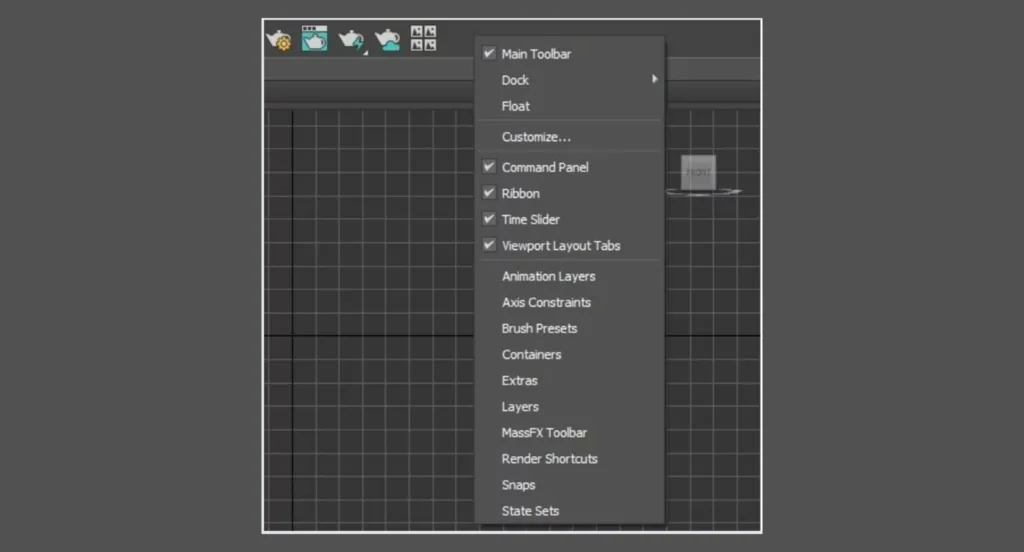
The active panels in the interface are marked with checkmarks. If you accidentally disabled the Main Toolbar, just right-click on the main menu panel — a context menu will appear where you can select the Main Toolbar item and return the display of the main toolbar to the interface.
Also, 3Ds Max allows you to customize the elements of these panels or create new unique panels with the tools you need.
You can create a new panel in two ways:
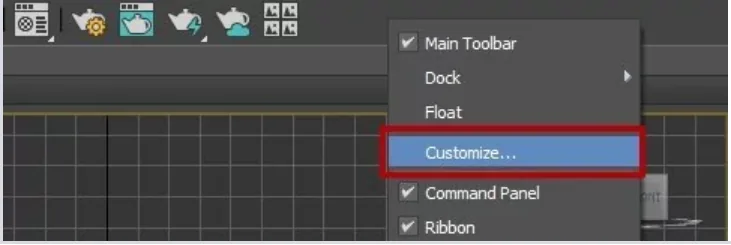
1. Right-click on the main toolbar and select Customize in the drop-down menu.
2. In the main menu, select Customize — Customize User Interface:
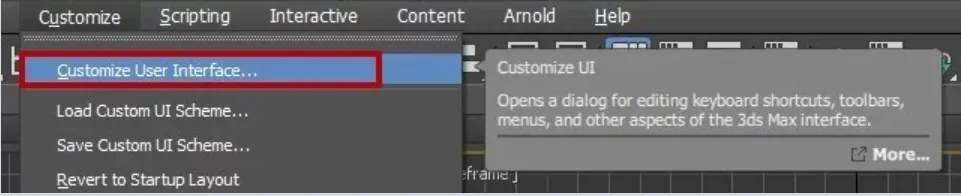
Next, in the window that opens, select the Toolbars tab:
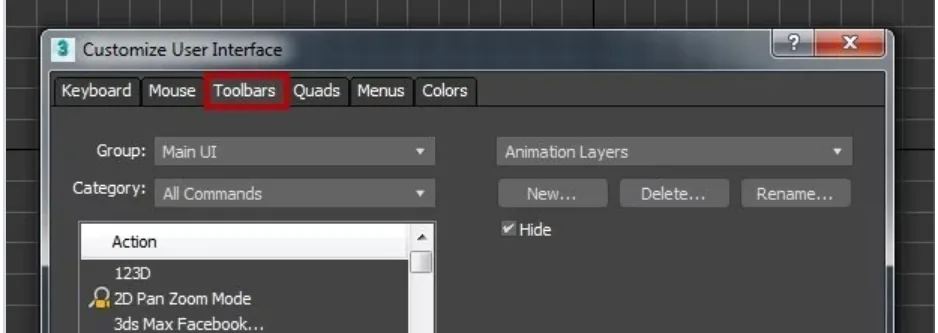
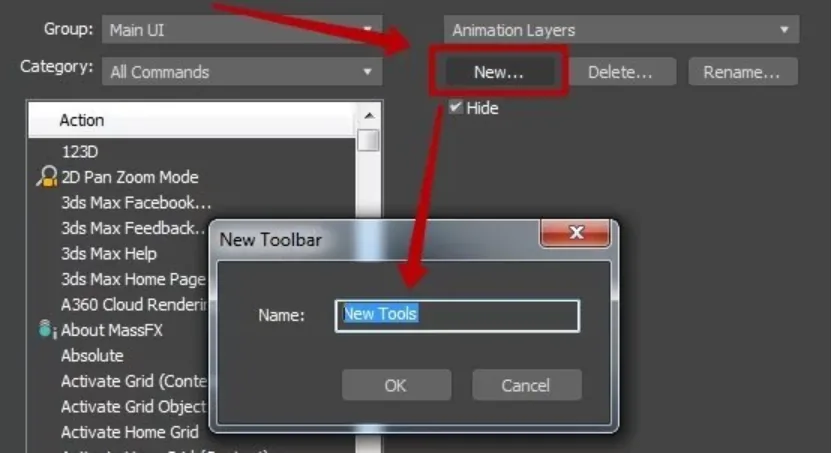
To create a new toolbar, click the New button and enter the name of the panel in the window that opens, for example, New Tools:
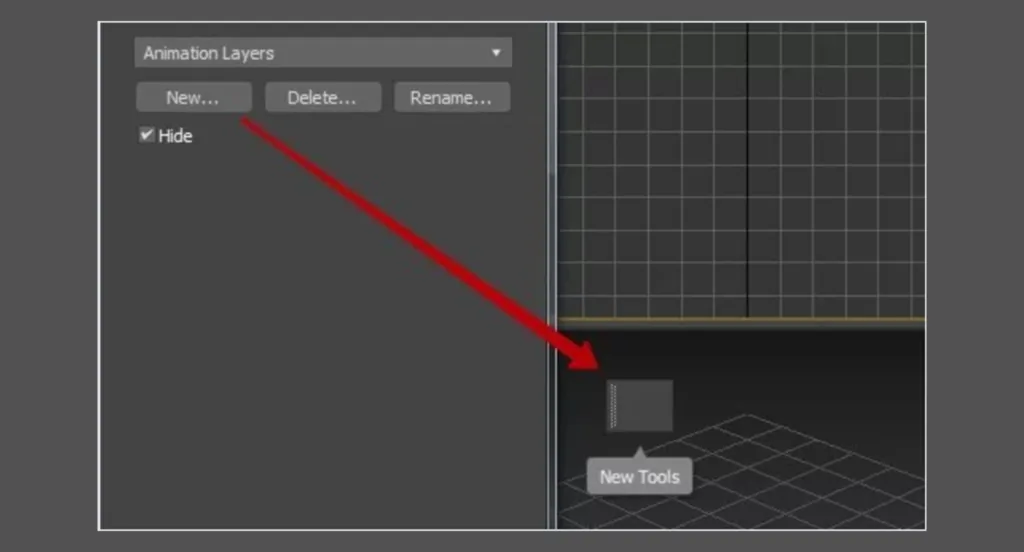
After confirmation, the created panel will be available in the program workspace:
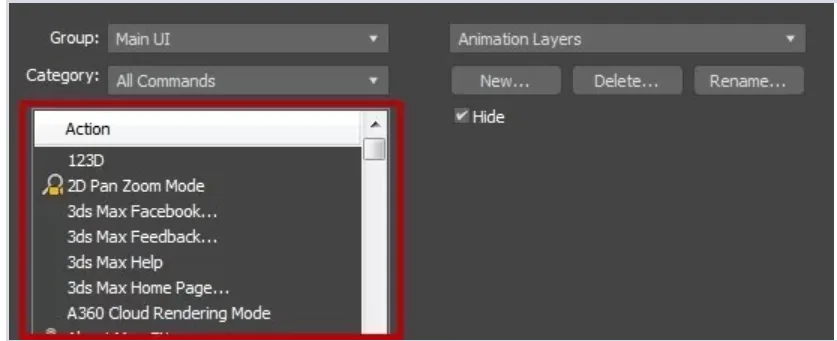
Now fill this panel with the necessary tools that you can choose from this list:
Projection windows
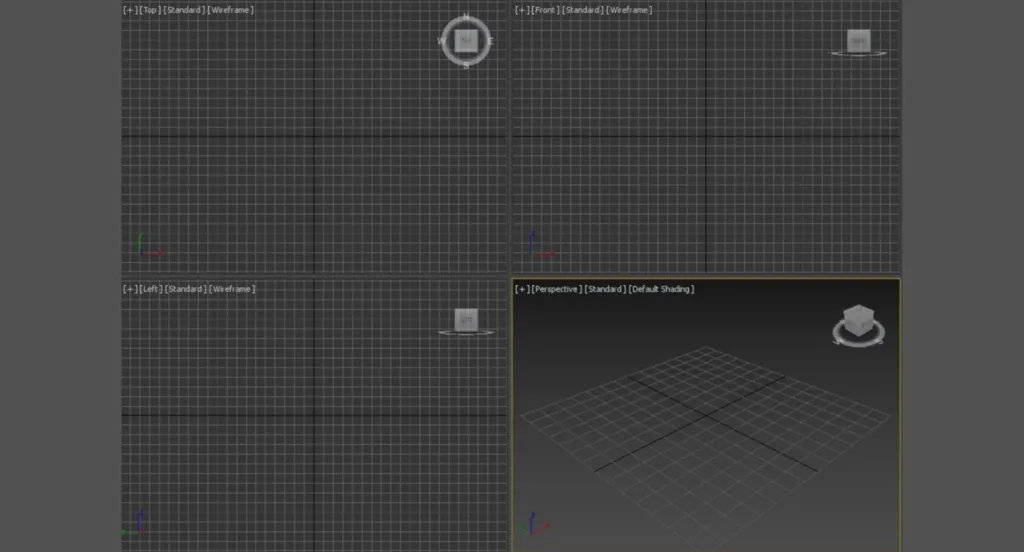
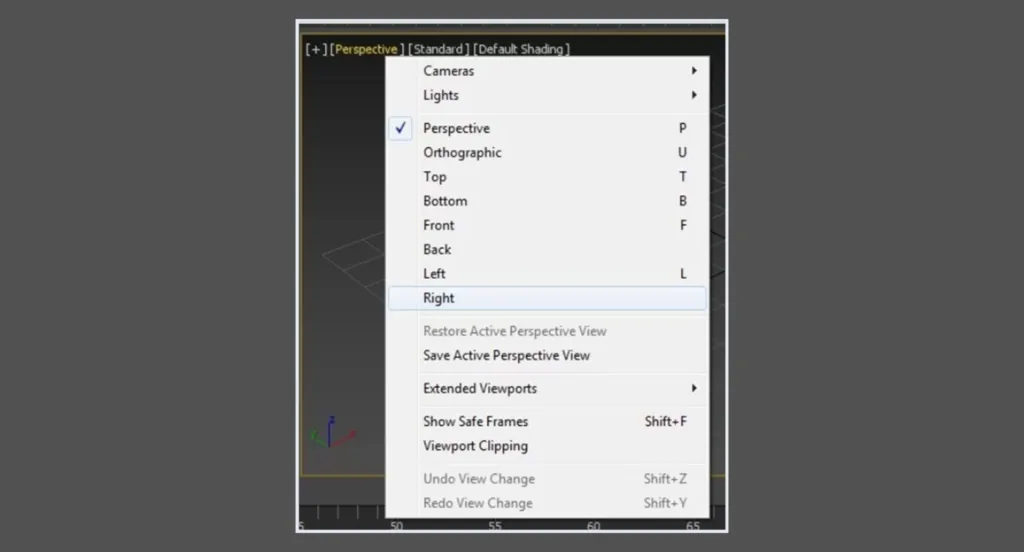
Projection windows occupy most of the program interface. There are four types of projection display available: Top (Top), Front (Front), Left (Left), Perspective (Perspective). You can select any desired projection view in the context menu.
Hot keys are indicated opposite each projection selection point, which significantly save time when modeling:
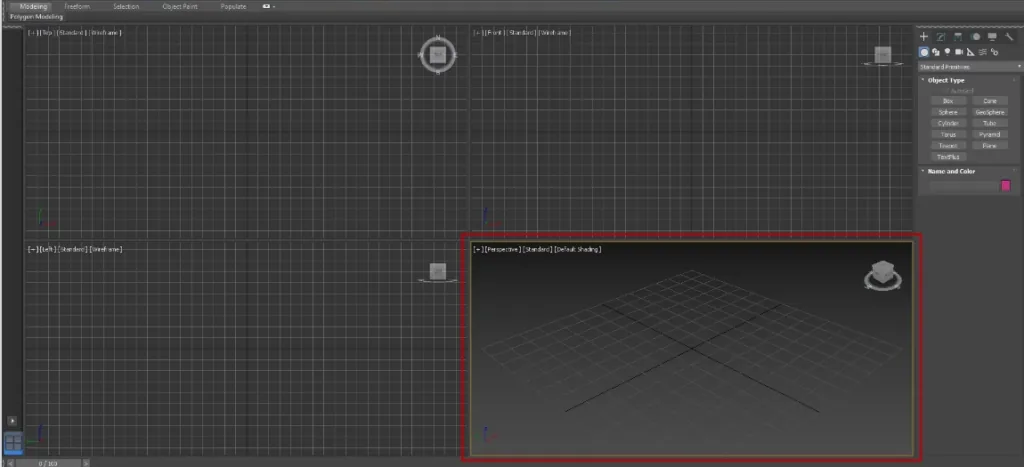
The active projection window is highlighted with a yellow frame so that users understand which projection is active at the moment:
Repeated pressing of these keys will return the window layout to its previous state.
Pay attention to the three-dimensional cube in the right corner of the screen — this is ViewCube, the so-called view cube, which allows you to change the projection:
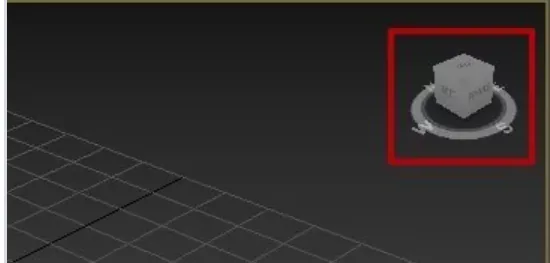
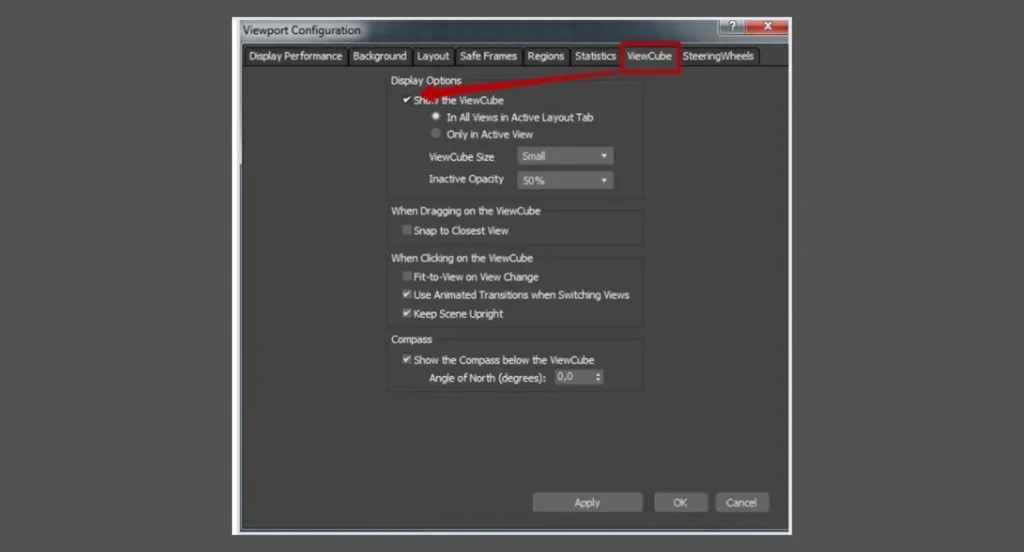
If you decide to remove ViewCube (for example, accidentally touched during work), you can do this like this: in the projection window in the upper left corner, click on the plus sign, a context menu will appear. There, select Configure Viewports, then in the window that opens, select the ViewCube tab and uncheck Show The ViewCube:
A special panel Viewport Layout Tabs (Viewport Layout Tabs) by default is located in the lower left corner of the program interface. It is responsible for a variety of layout of projection windows.
The standard is four identical windows, but the developer offers a choice of pre-configured templates. If one of the windows is more important to the user than the others, you can choose a layout with one large and three small windows and a convenient arrangement of the main window:
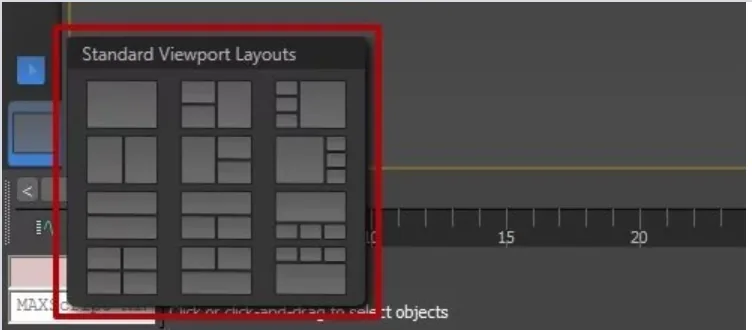
Hide or display the Viewport Layout Tabs panel, if necessary, can be done in the same place as any panel — in the context menu.
In the second part of the 3Ds Max instructions in Russian, we will talk about the other interface blocks. Subscribe not to miss it!
In addition to the online course on 3D graphics, Skills Up School has offline modeling training in Moscow and St. Petersburg. If you miss the lamp atmosphere of the community and communication not in zoom, read the details about the courses and sign up:
Related materials
How to draw fur

Frontal perspective in drawing

Statics and dynamics in drawing: creating mood and movement
About color and light in simple language: a comprehensive guide

The artist's dictionary: your guide in the world of creativity