How to make a portfolio on ArtStation for an artist and illustrator
Studios look for artists on ArtStation, so portfolios get read fast and by thumbnail. What to show and in what order, how many pieces you need and how to make project covers sit together. Anna Kholomkina walks through uploading a first project step by step.

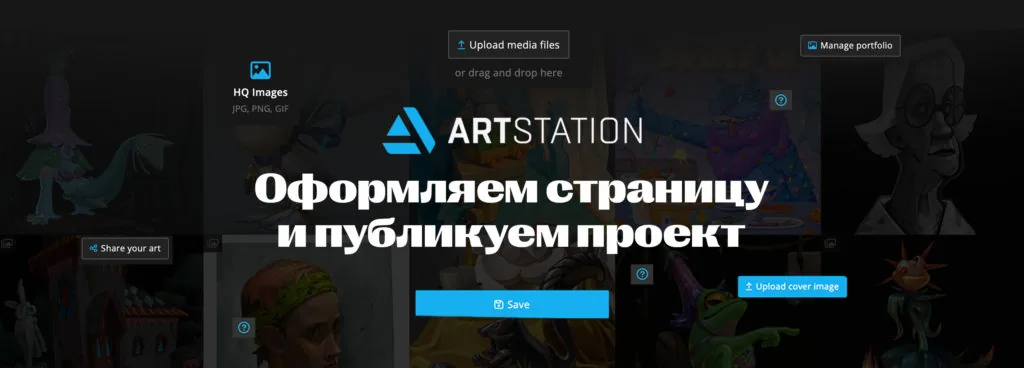
Where to place a portfolio for an aspiring artist? The most popular platform is ArtStation.
ArtStation is the largest international site for professional artists in the digital sphere. It has a user-friendly interface and, most importantly, it is used by potential employers — gaming and animation studios to find employees and individual clients to find freelancers for projects.
You can attach a link to your portfolio on ArtStation to your resume — companies are much more likely to view works there than in a folder attached to the message.
How to create a portfolio on ArtStation to make it look attractive? And how to publish your first project on the site? Anna Kholomkina, an artist and curator of 2D graphics courses and Digital painting Anna Kholomkina, talks about this and shows an example — her portfolio.
Experiment with background and avatar
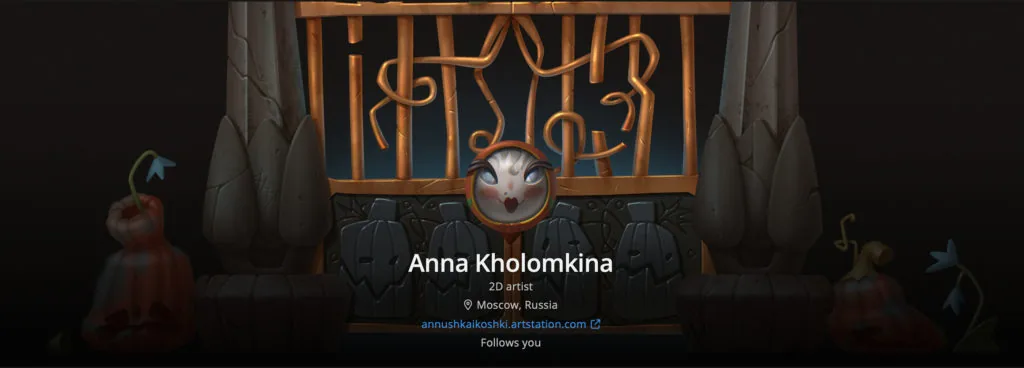
My avatar is a matryoshka that I drew for a friend's birthday, the background is a Halloween work with a gate. There was a castle on them, and when I tried on the background, the castle clearly hit the matryoshka's face. The works also match in color: it turned out to be a sudden arrangement of the avatar and the background. I've seen this before among other artists, and I think it arouses additional interest.
Gather works in folders
You can group them by topics: separately — traditional, separately — sketches, separately — 2D characters. Users will be able to navigate between folders or click "All" and see all the works mixed up. If the project is large, it would be great to create a folder and show the process in it — drawings at different stages of work.
Related courses
All courses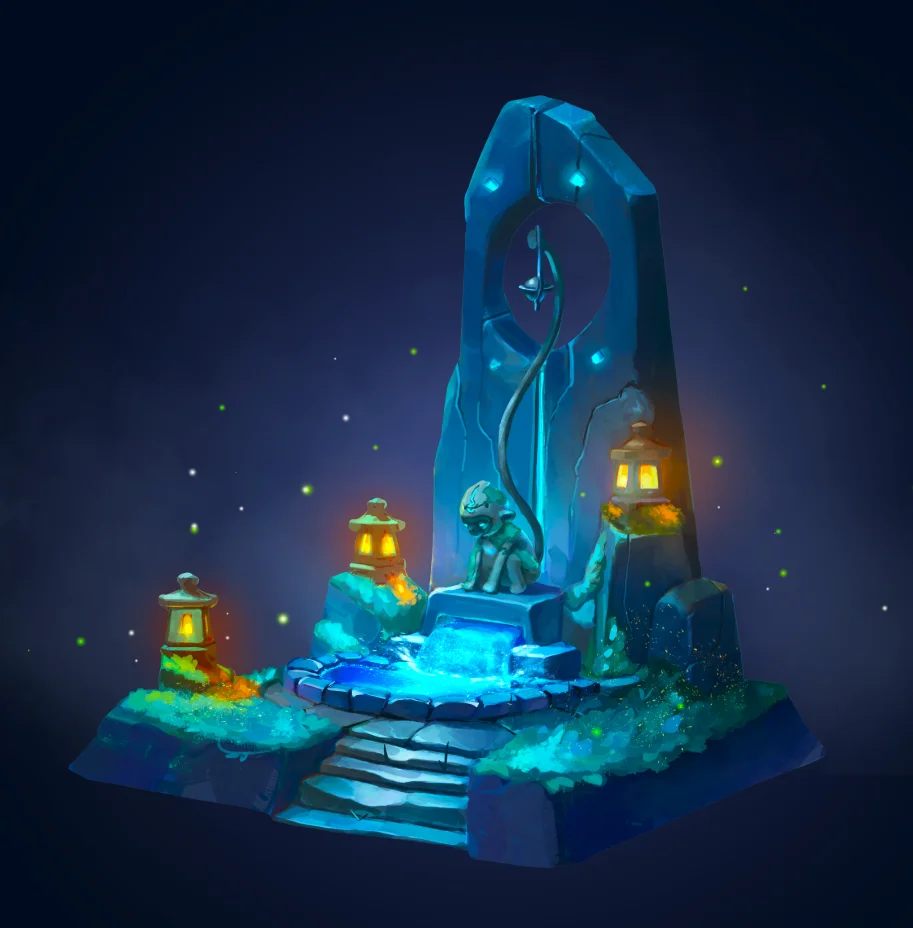
Prop concept: render and atmosphere
9 000 ₽4 950 ₽

Векторная иллюстрация для начинающих
12 000 ₽10 000 ₽

2D Artist
307 000 ₽67 540 ₽
Make sure that the previews of the works match each other
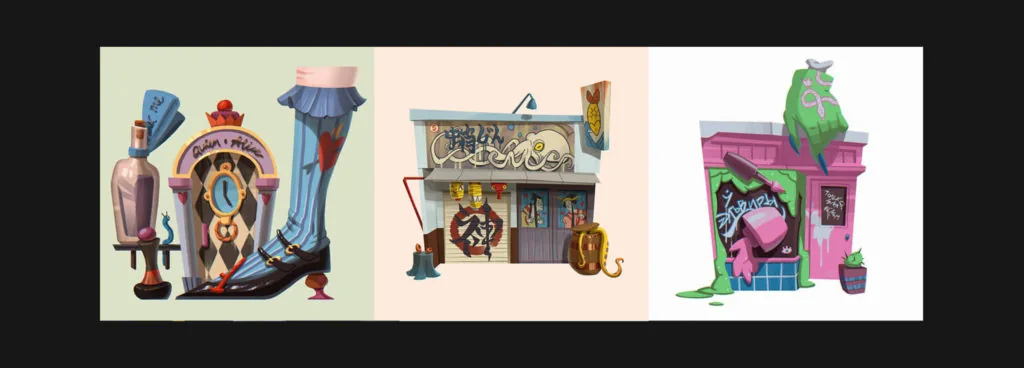
Automatically, previews of all works go in the order they were uploaded to ArtStation. But you can arrange them manually: for example, two colorful works are better diluted with others, more calm ones. Some tell a story through a sequence — it's also a cool idea to interest viewers!
How to upload your first project. Step-by-step instructions from Anna Kholomkina
By the way, you can sign up with Anna for Digital painting — this is a six-month course for those who want to combine traditional drawing and CG and create cool illustrations. The managers will tell you about the nearest start date, program and cost our managers.
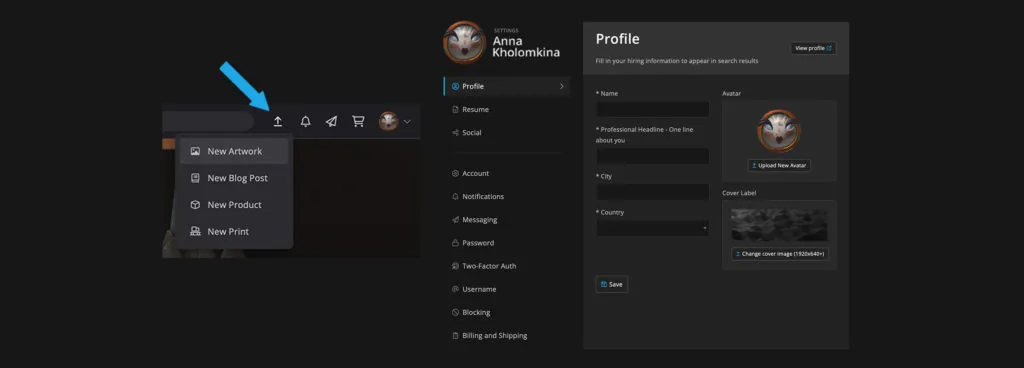
1. Upload a project. A project upload page appears, or, if you just registered, a page with editing your profile. Here you need to fill in the fields "Interested in" (what format of cooperation you are interested in), "Professional summary" (a few words about your experience), "Skills" (basic skills). You can fill in the rest of the fields later.
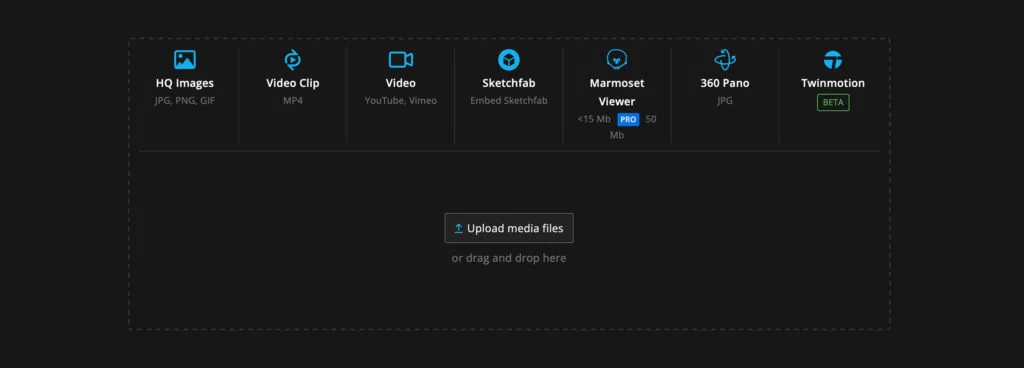
2. Project upload page. Title, uploading pictures:
- Ordinary image jpg, png, gif;
- Video — upload from device;
- Video — upload by link from YouTube or Vimeo;
- Sketchfab, Marmoset Viewer, 360 Pano — upload a 3D picture so that you can twist it.
Users of free accounts have limitations for uploading, but, in my experience, the available volume is enough, and you don't need to buy a pro account.
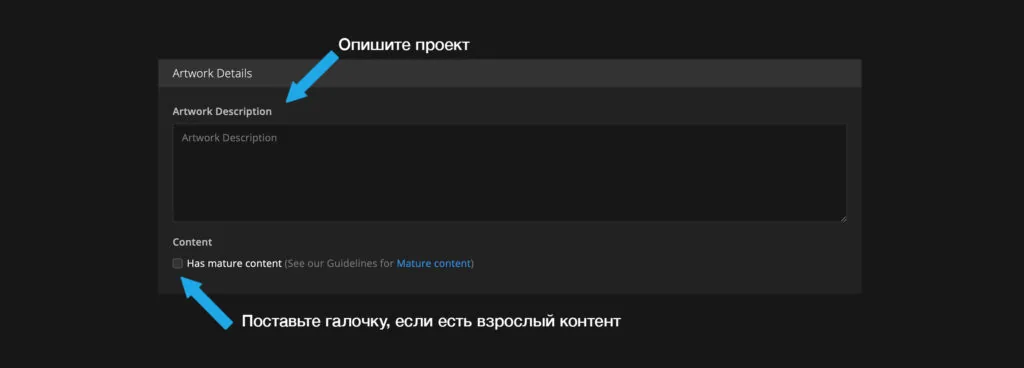
3. Project description (here you can put a checkmark if there is adult content).
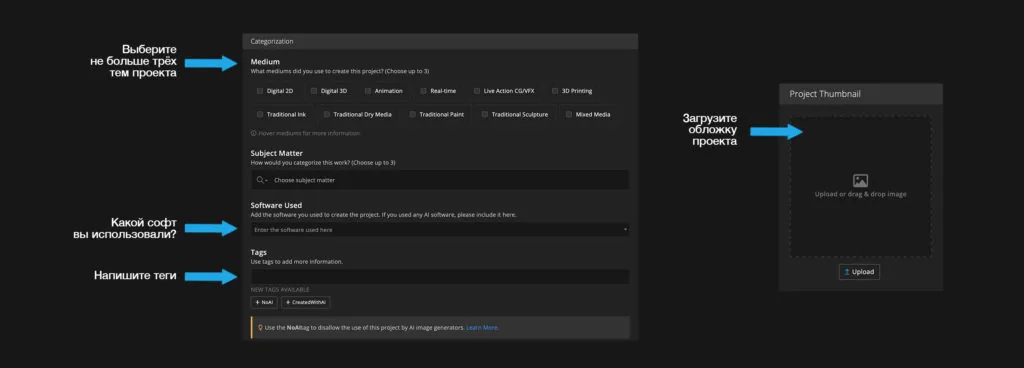
4. Direction to which the project belongs (Digital 2D, Digital 3D, Animation, Real-time, traditional — there is a separate block for it — etc.).
5. Project theme (no more than three themes: abstraction, anatomy, animals, etc.). All directions and topics are illustrated so that you don't get confused.
6. Soft. On Artstation there is a saved set of programs: start typing and it will offer the right one.
7. Tags. I recommend indicating your own tags and general ones that convey the essence of the work. For example, my project with the Wrinkle pigeon has tags "character", "pigeon", "grass".
8. Album cover — Project Thumbnail in the block on the right. The first picture from the project automatically becomes it, but you can upload another one or crop the existing one by clicking Crop.
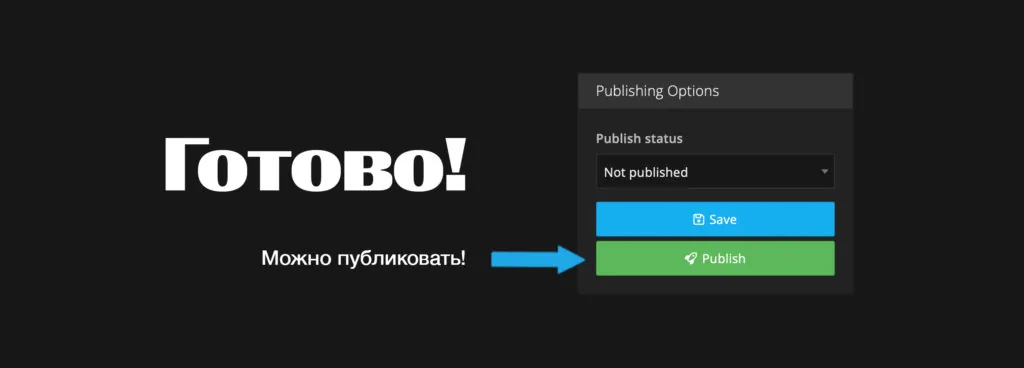
9. Publishing: choose the status Published and click Save.
Now you know how to arrange a portfolio for an artist and illustrator on ArtStation. If after reading the article you want to multiply the number of works, or create the first works to share on the platform, come to study at Skills Up School!
How to create a portfolio on ArtStation in detail in our video
Related materials
How to make a resume for an artist and illustrator (download a sample)
3D for 2D illustration: A comprehensive guide for artists
The artist's dictionary: your guide in the world of creativity

Digital painting. Skills of a modern artist
Concept artist: overview of the profession