
TutorialUpdated: September 6, 2026
How to draw a nut
In short
A short lesson on the material of wood: the form of a nut, the texture of the shell and soft shading. The curators of the 2D graphics course show the brush settings and blend modes it takes.

Skills Up School
Online school of drawing and CG
Step-by-step lesson: how to draw a nut in a stylized form
Drawing stylized objects is an exciting process that allows an artist to experiment with shapes, colors, and textures. Today we will dive into creating a stylized nut, which will not only help hone your skills in working with wood material, but also add a funny and cute element to your collection. Step 1: Linear sketch Start with a simple linear sketch of the nut. Pay attention to its general shape: slightly oval with a pointed end. Add characteristic details such as cracks and irregularities to give the nut a natural look. Step 2: Refining lines and texture Refine the sketch lines by adding texture details to the shell. Use thin lines to indicate veins and cracks that will give the nut realism.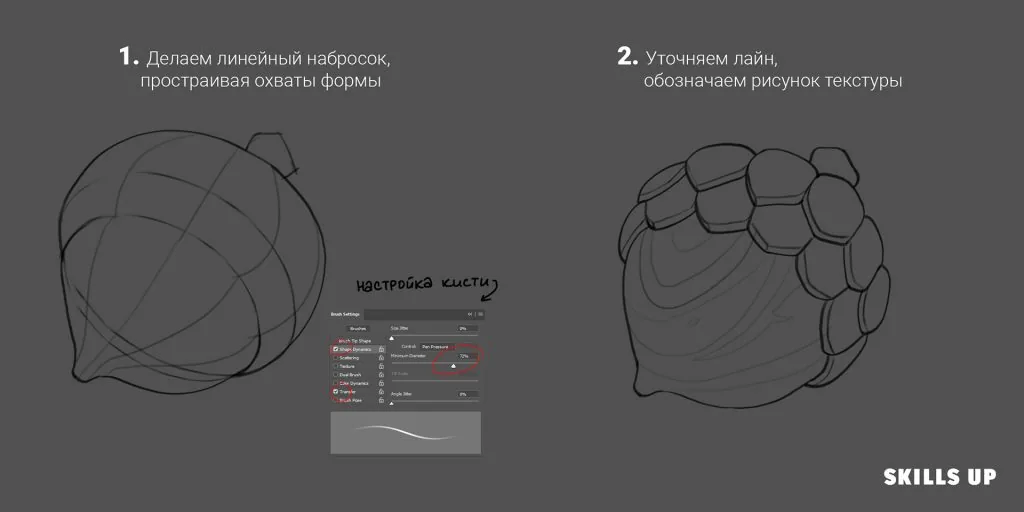 Step 3: Choosing a color palette
Choose the main colors for the nut. Usually these are various shades of brown: from light for illuminated areas to dark for shadows. Additionally, prepare colors for highlights and reflections to make the image more voluminous.
Step 4: Filling the shape
Using the "Lasso" tool, select the silhouette of the nut and fill it with the base color. This will create the basis for further detailing and shadowing.
Step 3: Choosing a color palette
Choose the main colors for the nut. Usually these are various shades of brown: from light for illuminated areas to dark for shadows. Additionally, prepare colors for highlights and reflections to make the image more voluminous.
Step 4: Filling the shape
Using the "Lasso" tool, select the silhouette of the nut and fill it with the base color. This will create the basis for further detailing and shadowing.
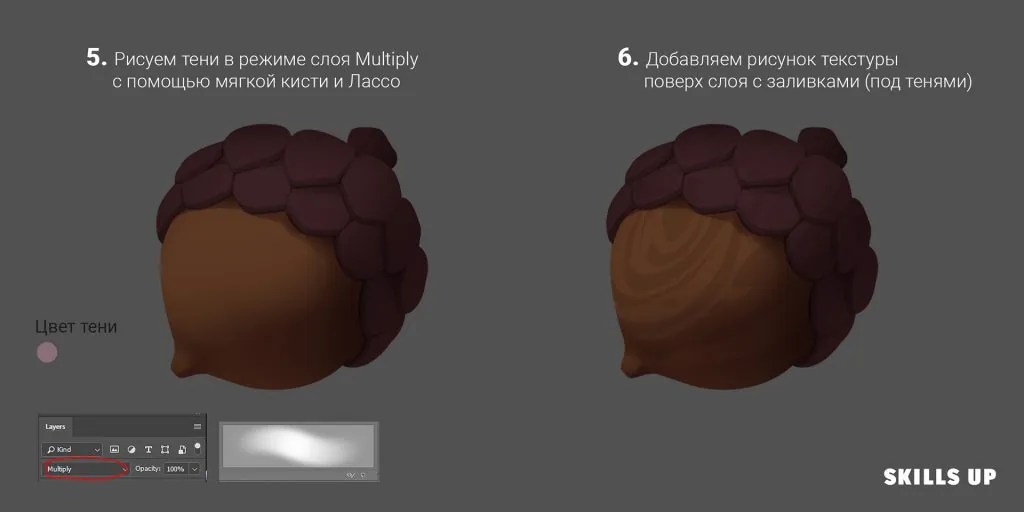
 Step 5: Applying shadows
Create a new layer and set the blending mode to "Multiply". Using a soft brush, add shadows in the appropriate areas, considering the предполагаемый source of light. This will give the nut depth and volume.
Step 6: Adding texture
On a separate layer located under the layer with shadows, draw the texture of the shell. Use different brushes to create a roughness effect and natural veins. This will enhance the sense of the object's materiality.
Step 5: Applying shadows
Create a new layer and set the blending mode to "Multiply". Using a soft brush, add shadows in the appropriate areas, considering the предполагаемый source of light. This will give the nut depth and volume.
Step 6: Adding texture
On a separate layer located under the layer with shadows, draw the texture of the shell. Use different brushes to create a roughness effect and natural veins. This will enhance the sense of the object's materiality.
 Step 7: Lighting
Create a new layer in "Soft Light" mode and add light areas on the nut, emphasizing its shape and structure. This will help highlight the illuminated areas and make the image more lively.
Step 8: Highlights and texture refinement
On a new layer in "Screen" mode, add highlights to the most illuminated parts of the nut. Then, in "Normal" mode, refine the texture by adding small details and accents to enhance realism.
Step 7: Lighting
Create a new layer in "Soft Light" mode and add light areas on the nut, emphasizing its shape and structure. This will help highlight the illuminated areas and make the image more lively.
Step 8: Highlights and texture refinement
On a new layer in "Screen" mode, add highlights to the most illuminated parts of the nut. Then, in "Normal" mode, refine the texture by adding small details and accents to enhance realism.
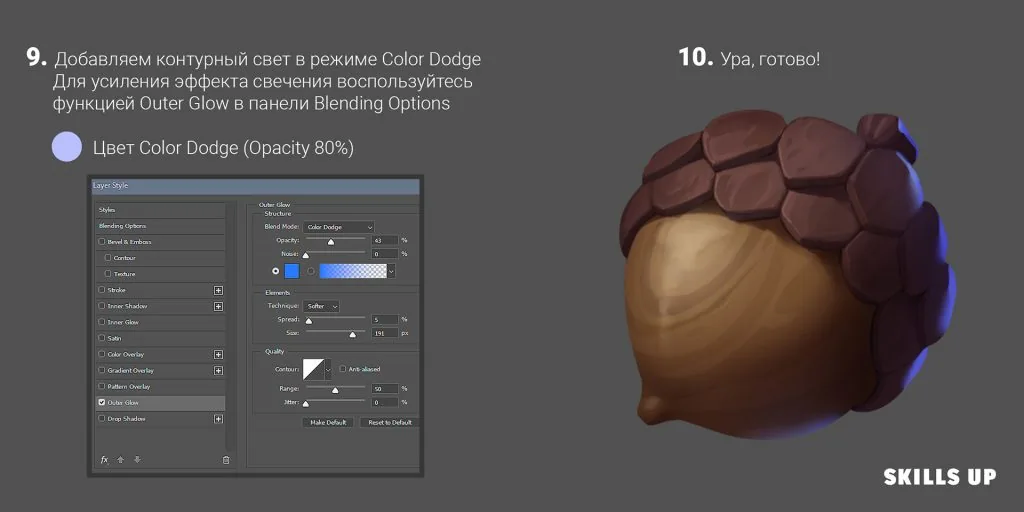
 Step 9: Contour light
To create a contour light effect, create a layer in "Color Dodge" mode. Carefully draw a glowing contour on the edges of the nut, considering the direction of the main light source. To enhance the effect, you can use the "Outer Glow" function in the layer settings.
Step 10: Final touches
Check the image for any flaws, adjust colors and contrasts if necessary. Add a background or shadow under the nut so that it does not look like it is floating in the air. Now your stylized nut is ready!
Step 9: Contour light
To create a contour light effect, create a layer in "Color Dodge" mode. Carefully draw a glowing contour on the edges of the nut, considering the direction of the main light source. To enhance the effect, you can use the "Outer Glow" function in the layer settings.
Step 10: Final touches
Check the image for any flaws, adjust colors and contrasts if necessary. Add a background or shadow under the nut so that it does not look like it is floating in the air. Now your stylized nut is ready!
 This lesson will help you master the basic techniques of working with textures and lighting, as well as develop your skills in stylizing objects. Practice, experiment with different shapes and materials, and your work will become even more expressive and unique.
For a deeper dive into the world of styling and developing your own artistic style, we recommend checking out the course "Stylization" from Skills Up School. In this course, you will analyze in detail how styling works, try different graphic techniques and create projects for your portfolio, realizing your wildest ideas.
Remember that each new object is a step towards improving your skills. Do not be afraid to try new things, and let the creative process bring you pleasure and inspiration!
This lesson will help you master the basic techniques of working with textures and lighting, as well as develop your skills in stylizing objects. Practice, experiment with different shapes and materials, and your work will become even more expressive and unique.
For a deeper dive into the world of styling and developing your own artistic style, we recommend checking out the course "Stylization" from Skills Up School. In this course, you will analyze in detail how styling works, try different graphic techniques and create projects for your portfolio, realizing your wildest ideas.
Remember that each new object is a step towards improving your skills. Do not be afraid to try new things, and let the creative process bring you pleasure and inspiration!
From a single object to a whole setup: see how to draw a still life step by step, from composition to tone.
Related materials
Tutorial
How to draw hair with a pencil
July 30, 2026
Tutorial
How to draw a house
October 25, 2024
Tutorial
Drawing stones
March 10, 2025
Tutorial
How to draw a child?
January 13, 2025
Tutorial
How to draw a torso
December 18, 2024
Article
3 tips for a beginner character artist. How to draw emotions
September 18, 2023